Maintained by Image Reshaper · Updated
Resizing vs Compression: Pixels and File Size Explained
Choose between changing pixel dimensions and reducing encoded file size, with a reproducible square-image example.
Resize changes pixels; compression changes encoding
Resize when an upload requires a width and height. Compress when it requires fewer bytes. You may need both: for example, a 400 × 400 image can still exceed a small file-size cap.
Our generated graphic starts at 1200 × 800. The examples below resize it to an exact 400 × 400 canvas in three ways. Fit preserves the whole graphic and adds padding. Center crop fills the square by removing edges. Stretch changes proportions.
Choose a resize behavior deliberately
Lock ratio keeps the source proportions while you edit one dimension. Turn it off to set an exact rectangle, then choose Fit, Crop or Stretch. The square preset now defaults to Fit instead of silently distorting the subject.
Padding is transparent in PNG and white in JPG. For a crop whose subject is not centered, use the interactive cropper first.
- Open Image Resizer and select your source.
- Set width and height; choose a named fit mode if the ratio changes.
- Resize and inspect the output dimensions.
- If the destination also has a byte cap, compress the resized file and check the dimensions again.
Try our measured examples
Created and tested on 2026-10-06 in Chrome 154.0.8037.98. These images were generated by this project. Results vary with source content and browser encoder; no camera photograph was used.
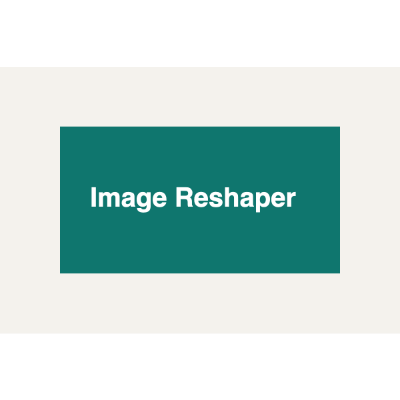

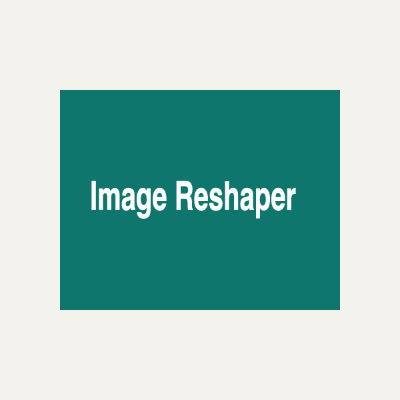
Method: deterministic Canvas-generated 1200 × 800 sources, the production renderImage/compressToMaxBytes functions, quality 80 for format comparisons, and an automatic bounded search for byte targets. Resize examples export PNG. No measurements of network speed or field Core Web Vitals are implied.